Cart Builder: Difference between revisions
No edit summary |
No edit summary |
||
| Line 26: | Line 26: | ||
=== Flashing using Chrome === | === Flashing using Chrome === | ||
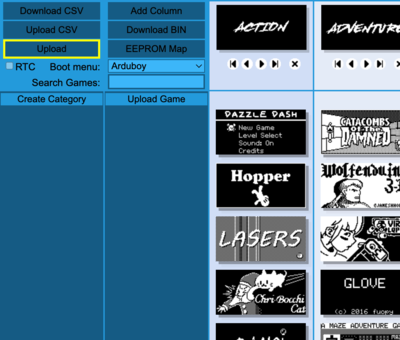
# | # Click the 'Upload' button in the top-left corner of the website. [[File:CartBuilder_Upload1.png|400px]] | ||
[[File:CartBuilder_Upload1.png|400px]] | |||
Revision as of 05:59, 16 June 2024
The Cart Builder is a website that allows you update an Arduboy FX or Arduboy Mini variant with the latest games contributed by the community. There are a number of existing cart definitions ranging from the 'Full Enchilada' - which contains all games available - to speciality carts including Filmote's curated list of games, a Press Play on Tape fan cart and others.
The site also allows you to contribute games and to create your own cart with custom categories, etc. Contributed games can be made available to the community or kept hidden and only available to the cotributor.

Due to the different wiring of the various Arduboy variants, there are a number of different URLs that specify the Arduboy variant and the initial cart configuration. These URLs are enumerated below:
Arduboy FX
- [Whole Enchilada] This cart contains all the games that have been published for the Arduboy FX.
- [Curated List] This cart is a selection of games that curated by Filmote, the site's owner. The intent is to keep the list to approximately 100 - 125 titles.
- [Flash Cart] This cart contains all Filmotes's & PPOT games in one collection.
Arduboy Mini
- [Full Enchilada] This cart contains all the games that have been published for the Arduboy Mini. This is also appropriate for any device that uses the PE2/HWB pin for CS on the flash chip.
Flashing the 'Full Enchilada' to an Arduboy
Most users will simply want to flash the entire cart to their Arduboy periodically. When using a recent version of Google Chrome, this can be done directly from the site. When using other browsers, there are additional steps and software involved.
Flashing using Chrome
- Click the 'Upload' button in the top-left corner of the website.